Wednesday, May 5, 2010

Clash Of The Titans


Clash Of The Titans

[DOWNLOAD POSTERS] [PHOTO ALBUM] [WATCH VIDEO]
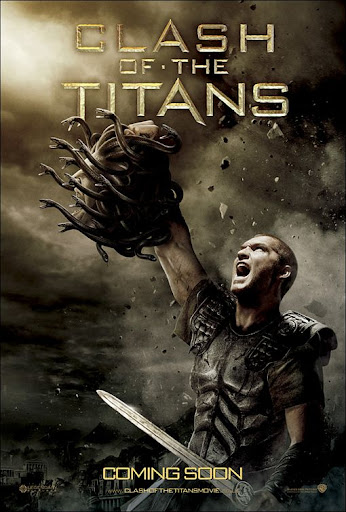

Clash of the Titans

Movie Review:
Ok, the story is based upon ancient Greek Mythology.which is based upon the following Ideas or Rules or Whatever...
First : Zeus, and his brother Hades and along with some other , took over the power of some other titans and then created Man.
Second: these titans created men because, their prayers gave god's immortality and god powers.
Third:Zeus tricked his brother hades to become the god of the underworld, wheras Zeus became the god of the upperworld. While Zeus grew stronger upon the prayers of men and how happy they were,Hades grew stronger proportional to their fear meter.

The whole story is based upon these three concepts.

Now coming to the plot of the story,
Perseus the story's Hero is saved by a fisherman who find's Perseus as a baby along with his dead mother in a wooden casket.
after some year's go by when the whole fisherman's family along with perseus fish near the water's of Zeus's 100m idol.
The soldiers of arogus destroy the idol of zeus ,in a battle between zeus and them.
To revenge this Hades suddenly appear in the spot and kills all the soldiers along with the family of Perseus , only Perseus survived the attack.
Perseus now hating the God's, decides to avenge the death of his parents.

Now,Perseus is mistakenly taken by the army as a survivor ,and ends up in the king's court. Guess what , Hades appears there too ,He kills the queen and threatens the whole country.He asks for the head of the princess in return of the lives of all the country men.
he threatens to unleash a beast called as Cracken among them.
And he does one more thing, he informs the information that hades is a Demi-God .

Perseus decides to take his revenge and to fight the Cracken , and to save the Princess in the process.

Will he find a way to survive and defeat Hades and Cracken??
That is the rest of the story.


Cast
Sam Worthington    ...     Perseus
Liam Neeson           ...     Zeus
Ralph Fiennes         ...     Hades
Jason Flemyng        ...     Calibos / Acrisius
Gemma Arterton      ...      Io
Alexa Davalos          ...      Andromeda
Tine Stapelfeldt       ...      Danae
Mads Mikkelsen      ...      Draco
Luke Evans              ...      Apollo
Izabella Miko            ...      Athena
Liam Cunningham ...      Solon
Hans Matheson      ...      Ixas
Ashraf Barhom        ...      Ozal
Mouloud Achour      ...      Kucuk
Ian Whyte                  ...      Sheikh Sulieman

Overview:
Director:            Louis Leterrier
Writers:             Travis Beacham (screenplay) and Phil Hay (screenplay)
Release Date: 2 April 2010 (India)
Genre:                  Action | Adventure | Drama | Fantasy


Clash Of The TItans Video Trailer

Thursday, April 22, 2010

Lotus Exige

Lotus_exige

Bearing the same engine and supercharger as the new Elise SC, the 2008 Lotus Exige S produces 218 HP and 156 lb ft of torque from a high revving 1.8 liter Toyota built 2ZZ engine.

Price Range:£34,333 - £34,550

DOWNLOAD WALLPAPERS

SPECS

Fuel               : petrol.

Mileage         : 23 MPG.

0-60 MPH      : 4.1 sec.

0-100 MPH    : 11 sec.

Top speed    :150 MPH


Suspension:

· Fully Independent Suspension with Unequal Length Wishbones
· Bilstein Mono-Tube Gas Damper, Eibach Coaxial Coil Spring
· Front Anti-Sway Bar
· 7 Twin-Spoke Forged Alloy Wheels in Matte Black
· Front Wheels/6J x 16 - 195/50R16
· Rear Wheels/7.5J x 17 - 225/45R17
· Yokohama Advan Neova A048 LTS Ultra Performance Tires
· 4-Wheel Ventilated/Cross-Dilled Disc Brakes
· Lotus/AP Racing & Brembo Calipers with Anti-Lock Braking System (ABS)


Engine:

· 218 Horsepower Supercharged 1.8 Liter, Mid-Mounted
4-Cylinder with DOHC and VVTL-I (Variable Valve Timing
and Lift Intelligence)
· Capacity: 1.8 L
· Bore/Stroke 82.0 mm/85.0 mm
· Maximum Power: 218 hp @8000 rpm
· Maximum Torque: 156 lb ft @5000 rpm
· Compression Ratio: 11.5:1
· Fuel Tank Capacity: 10.6 US Gallons

Transmission:

· 6-Speed Close Ratio with Single-Plate Dry Clutch


Saturday, April 17, 2010

little super star

DO YOU THINK SIMBU IS THE "LITTLE SUPER STAR"??
well,sorry to say that he's now "YOUTH SUPER STAR"..

Not to worry my fellow mates here is your little super star "thavakalai".


Parodies

Parody by Cree8tv:

Parody by Oskamill


Saturday Night Live parody:

Parody by Nobody’s Watching:

Ron Jeremy vs. Little Superstar:

Technoviking Remix:

Exploding Little Superstar by CuteThingsExploding:


Mash-ups

Little Superstar w/ Michael Jackson:

Death Metal version:

Stoned Dancing Remix by URSOFUNNY.com:

POPULAR CHANNELS CAPTURE THIS PRECIOUS MOMENT.

On Current Buzz:

The Dancer


In recent years, actor Thavakalai has choreographed a dance scene in a Doritos Tandoori Sizzler! (click for video) commercial shown in Canada, which was filmed in India.

Friday, April 16, 2010

Audi R8


Posted by Picasa

Sunday, March 7, 2010

BSNL (vs) AIRTEL – Choosing The Right Internet Plan


Hi,
Most of us use the internet to
  • watch streaming videos.(64KBps or 512Kbps is optimum)
  • do some social networking.
  • listen to internet radio.
  • video chat.(64KBps or 512Kbps is optimum)
  • voice chat.(32KBps or 256Kbps is optimum)
  • reading Blogs.
  • book movie tickets.,etc.
So, an unlimited Internet connection with some sensible monthly bill would be the right thing since streaming video’s consume about 225 MB for 60 mins (60*60*64=230400KB or 225MB).
Having that criteria in mind a 256Kbps(32 KBps) connection would make the streaming video buffer for every 2 seconds.
So the right option is 512 Kbps(64 Kbps).
Now coming to the comparison part.
Bearing in mind that u are applying a new connection from both the companies.
BSNLAIRTEL
Monthly BillRS.1350 for 512 KbpsRS.1099 for 512 Kbps
Installation chrgs.NIL
Security DepositRs.1350 (one months bill)NIL
Modem’s chrgs.( WIFI modem with Ethernet)Rs.1600Rs.1500
Customer SupportUnder the carpetGood
Final ChargeRs.4800 + 10.6% Service TaxRs.2599 + 10.6% Service Tax
Well this is the thing with BSNL.It is not only the initial charges that make no sense, check the monthly bill.
Now it is up to you to choose the plan for you,since you are going to pay the “Bills”.
Either you want a reasonable monthly bill with good customer support,or you want to pay 250Rs. Extra for a service which has a Customer service that don’t even attend your phone calls so they don’t have to reply your queries.
Yours,
Vicky
REFERENCES:

Thursday, February 25, 2010

How to Enable Media Keys to work with Winamp?

Hi,
How to Enable Media Keys to work with Winamp?
Windows Media Player always recognizes media keys by default, but the all favorite(because it uses less memory and has great customization) WinAmp doesn't do the same thing.
well we could make it work with multimedia supported keyboards,by these steps.
STEP 1:
Click on the options button in Winamp.
and,select Preferences.
(or)
use the keyboard accelerator "Ctrl+P".
STEP 2:
Select the Global Hotkeys button and check the "Enable default multimedia key support".
that's it now you could use your keyboard to change songs , stop , play , pause.....and do  every music listening needs.
you could also customise the keys the way you want it.
you dont have to worry if your keyboard has no multimedia support features,you could use the deafault keyboard hotkeys.
Enjoy.
Thank you for reading the Blog,
Yours
Vicky
References

Sunday, February 21, 2010

How to Enable or Disable PenDrives in your computer.

You could enable or disable pendrives and other devices that could be connected through the USB , either by editing BIOS or by the following method.

STEP 1:
Start windows registry editor by,
  • Starting “Run
  • Type “regedit
  • Hit enter key
STEP 2:
Navigate to the below registry key by,
  • click on HKEY_LOCAL_MACHINES.
  • click on SYSTEM.
  • click on CurrentControlSet.
  • click on Services.
  • click on USBSTOR.
STEP 3:

Now there would be a key called “Start” click on it to open a popup window.

The ValueData box would be defaultly set to 3 , set it to 4 and hit enter.

FINISH:
Close the regedit and restart your computer so that the changes would be successfully implemented.
Hope u got answers to your questions .
feel free to leave a reply.
yours,
Vicky

How To Set Up A Site Powered By Joomla CMS With A Remote Server

February 16, 2010 by vigneshm

Hi,

If you want to Set Up A Site Powered By Joomla CMS With A Remote Server,here is the step by step procedure to do so.

STEP 1:

First of all have a copy of the Joomla in your hard drive,and make sure that it is the latest.

download Joomla from www.Joomla.com

when this blog was published the latest Joomla was Joomla_1.5.15.

Untitled-1

STEP 2:

Set up your ftp client with the userid and password given by your remote file hoster such as www.megabyet.com , www.000webhost.com ,etc that u signed up with.

Untitled-2

test connect with the server and see if your setting’s work.

STEP 3:

Now you should had downloaded joomla installation file

Joomla_1.5.15–stable-Full_Package.zip

or any other stable version that is provided on that date.

decompress the file to a folder on your desktop or any other accessible folder,here i’ve created a folder named Joomla and uncompressed it there.

and your directory should look similar to the below directory.

Untitled-14

STEP 4:

now that u have created a upload directory.

map it using your FTP Client software and

Drag the content to the folder named “htdocs”.

and your files start to get uploaded.

Untitled-3

STEP 5:

After the files have been uploaded you should see all the directories and files that u uploaded from your FTP client.

Untitled-4

STEP 6:

Now type your website’s address in Firefox and load the page

you should have an address similar to

http://vicky89.byethost5.com

the page should load as in the below image to show that u have properly uploaded all the files to your remote server.

Untitled-11

STEP 7:

now a page prompting to delete the installation directory should pop up as shown above.

in order to continue with the installation you should delete the installation directory.

goto your ftp client and list down the folders in your htdocs folder and navigate to the installation folder

and delete the folder from your FTP client.

Untitled-12

wait for a few minutes before all the files in the installation directory and the directory itself get’s deleted.

refresh the listing and verify that there is no installation directory.

STEP 8:

Now go to the your page by using firefox browser and check if the page displays the contents as below.

Untitled-5

Select the language that u want the installation interface should be.

and click the next button.

STEP 9:

Then the next step is to check the pre installation options, leave them to default or change them to your custom .

and click the next button.

Untitled-6

STEP 9:

Now an accept license screen in shown.

accept the license and click the next button.

Untitled-7

STEP 10:

Set up your database by entering the database setting’s provided by your file hoster.

if you dont have a database then create it from your provider.

after you enter the necessary info click the next button.

Untitled-8

STEP 11:

Set up your ftp by providing the info in this page.

an ftp is optional so u can skip this step if you want to.

click the next button when u are finished.

Untitled-9

STEP 12:

Now the following is the most important step of them all you have to set an admin password.

choose a password that other’s cant access and make sure that you are the only person who knows it.

after you have finished with this step click next.

Untitled-10

STEP 13:

That’s it you have finished the installation and you can continue to your website by loading your page in firefox.

and your default home page should show up something similar to this.

Untitled-13

Edit your page using dreamweaver or any other web page editors.

That’s it enjoy playing with your site .

Thank you for reading this blog.

you are welcome to post your comments in the comments page shown below.

your’s

Vicky

Saturday, February 13, 2010

Blogger.com does not support BlogJet

Hi,

Blogger.com does not support BlogJet ,well it doesn’t BlogJet simply says to uncheck the SSL check box which i did but it displays the same msg again and again and again.

For Example,

let me try to connect to blogger.com using an sample blog that i created just for testing.

the account wizard is nifty but it dosent work with blogger

4

after i click on the next button.

3

after i give the url then it shows.

2

but it dosent connect to blogger instead it shows.

1

now i know what SSL is i do as the prompting window says but it still dosent connect to the site.

but,it successfully connects to wordpress.com.

Thank you for reading the blog.

yours,

Vicky

Vicky Shouts


13-Feb-2010

Hi,

This is vicky , I've decided to blog instead of creating sites for publishing my idea's, that i think that people would get some useful

ideas that they may apply in their work.

hope u like my blog's

yours,

Vicky

Pages

Search This Blog

Followers